Creating a score

To create a score for a question, click on the question's text from the question list to go to the question page. Go down the page and click on Settings, then Scores, then click on + Create Score.
Here's the Add Score screen.

Name
The first thing a new score needs is a name. This name will appear in the Display Options menu and be visible to everyone who can see the score. We suggest you use this name as a concise description of your research goals for this score.
Example: Favorability Index.
Sharing a score
If you want others to be able to view the score, tick the box to the left of Share this score with everyone who can see the question. They will not be able to edit the score.
Formula definition
Defining the formula requires some knowledge of math. You will enter a formula in the formula editing field, and the result of the formula will be the value of the score. There are dropdowns to help you enter your variables and functions, but you can also enter the formula directly in the formula editing field.
 The Variables dropdown contains the variables representing the response counts that can be used in the formula definition. In the Chipotle example, {a1} represents the response count for the first answer option, i.e., the number of respondents that have selected the Never heard of it answer option; {a2} represents the response count for the second answer option, and so on, The {total} variable is also provided, as a short-cut to the total number of respondents that have answered that question.
Once you make a selection in the Variables dropdown, the corresponding variable is inserted in the formula editing field at the cursor position.
The Functions dropdown contains the operations that can be used with the variables:
- + (plus) for addition
- - (minus) for subtraction or negation
- * (asterisk) for multiplication
- / (forward slash) for division
- ^ (caret) for exponentiation
- () (parentheses) for grouping
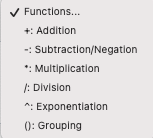 When you make a selection in the Functions dropdown, the corresponding operator is inserted in the formula editing field at the cursor position. You may also type in an operator.
Enter your formula, then click Validate. If the formula is valid, click Add Score. The next screen is Score Settings.
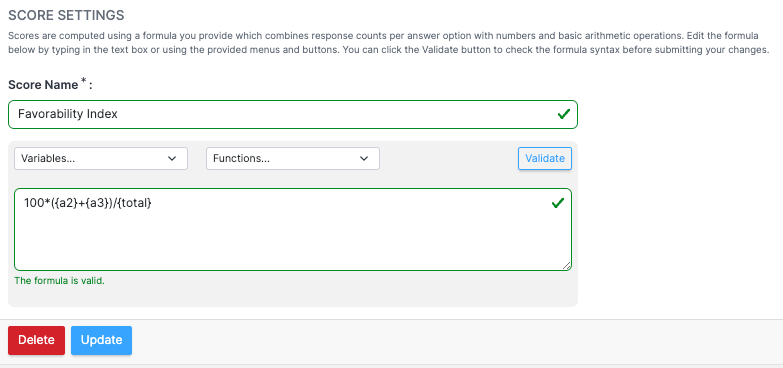
Note: Every time you edit the formula, it must be validated again.
Advanced formulas
If you need more options, please see Advanced formulas.